
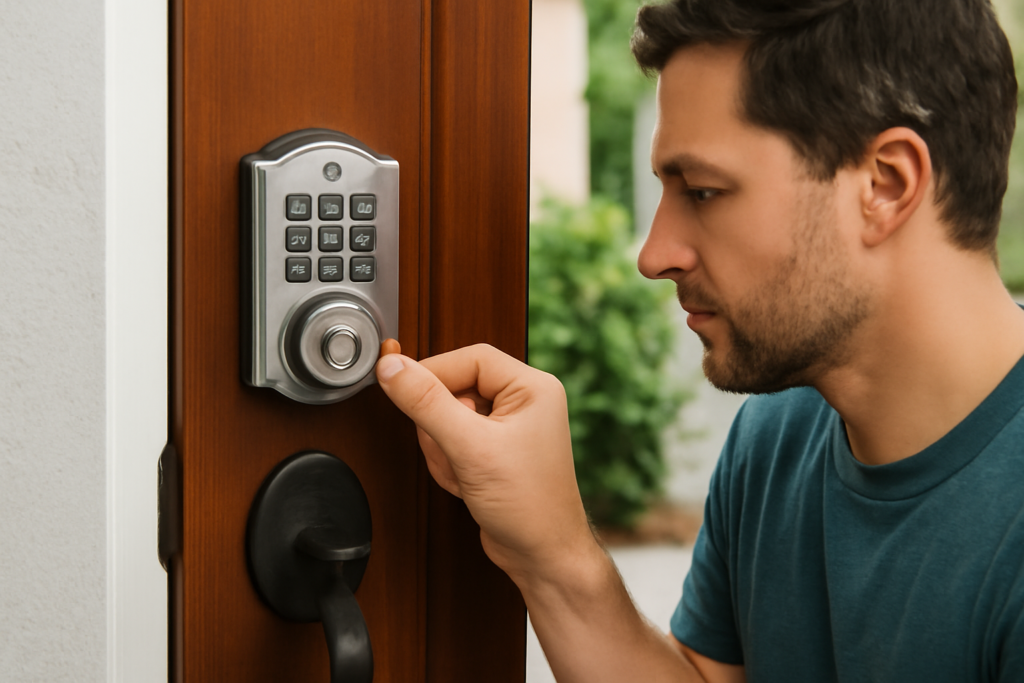
Whether you just moved into a home with an existing keypad lock, forgot your master code, or your lock is acting up, a Kwikset smart lock reset wipes the device back to factory settings so you can start fresh. The exact steps vary by model — the Halo, Kevo, and SmartCode lines each have their own reset procedure — but all follow the same logic of clearing stored codes and re-pairing. This guide walks through the process for the popular models and how to avoid the mistakes that trip people up.
- When You Actually Need to Reset
- Before You Begin
- Resetting a Kwikset SmartCode Lock
- Resetting a Kwikset Halo Lock
- Resetting a Kwikset Kevo Lock
- Re-Adding Codes and Users
- Common Problems and Fixes
- Deleting a Single Code Without a Full Reset
- When the Reset Won’t Complete
- Security Best Practices After a Reset
- Keeping Your Lock Reliable
When You Actually Need to Reset
A factory reset erases all user codes and settings, so it is not a step to take casually. It makes sense in a handful of situations: you moved into a home and want to clear the previous owner’s codes, you lost the master code and are locked out of programming, the lock is glitching and unresponsive, or you are re-selling or gifting the lock and want it blank.
If your problem is simply a single code that stopped working or a connectivity hiccup, you may not need a full reset — deleting and re-adding one code or re-pairing the app often fixes it. Reserve the full factory reset for when codes are lost or the lock genuinely misbehaves.
Before You Begin
Have a few things ready so the process goes smoothly. Locate your physical key — most Kwikset smart locks still have a keyway, and you may need it to enter after a reset. Note the model, usually printed on the lock or in your manual, since the button locations differ. And have fresh batteries on hand; a reset can fail or corrupt if power drops mid-process.
If your lock connects to an app like Kwikset or a smart home hub, plan to remove the lock from the app after resetting the hardware, then re-add it. Resetting the physical lock alone does not clear its pairing in the app.
Resetting a Kwikset SmartCode Lock
The SmartCode series (like the 909, 913, and 916) is among the most common. To factory reset most SmartCode models:
- Remove the battery pack from the interior assembly.
- With the door open, press and hold the Program button (usually the “A” or button on the inside).
- While holding it, reinsert the battery pack.
- Keep holding the Program button for about 30 seconds until the lock beeps and the status light flashes.
- Release, then press the Program button once more to complete the reset.
The lock is now blank. You can program a new master code by pressing the Program button and entering your chosen code on the keypad, following the beeps and light cues.
Resetting a Kwikset Halo Lock
The Wi-Fi-enabled Halo uses a similar hardware sequence with an app component. Remove the interior cover to access the battery, then take out the battery pack. Press and hold the Program button on the interior unit, reinsert the battery while still holding, and continue holding for roughly 30 seconds until the lock signals the reset with lights and tones.
Because the Halo connects to Wi-Fi through the Kwikset app, you must also delete the lock from the app after the hardware reset. Open the app, remove the device, then re-add it as a new lock and reconnect it to your Wi-Fi network. Skipping this step leaves the app trying to reach a lock that no longer recognizes it.
Resetting a Kwikset Kevo Lock
The Kevo, which uses Bluetooth and a touch-to-open feature, resets slightly differently. Remove the interior cover and battery pack, then locate the reset button on the interior assembly. Press and hold that reset button while reinserting the batteries, and keep holding until the lock indicates the reset with its LED and sound.
Just like the Halo, remove the Kevo from the Kevo app afterward and delete any stored eKeys, then re-enroll the lock and your phone. Since the Kevo relies on your phone as a key, re-pairing the Bluetooth connection is essential for it to function again.
Re-Adding Codes and Users
Once reset, the lock has no codes, so anyone with a working code before is now locked out of programming — which is exactly the point when clearing a previous owner’s access. Program a new master or admin code first, then add user codes for family members. Most Kwikset keypads let you store multiple codes; check your model’s limit, which ranges from around 16 to 250 codes.
For app-connected models, add users through the app after re-pairing so you can manage and revoke digital access remotely. Use unique codes for each person if you want to track who comes and goes, and avoid obvious sequences like 1234 or your house number.
Common Problems and Fixes
A few issues crop up repeatedly. If the reset does not seem to take, your batteries are likely weak — install a fresh set and try again. If the keypad does not respond after reset, make sure you fully seated the battery pack and the interior cover, since a loose connection interrupts power.
For app-connected locks that won’t reconnect, confirm you are on a 2.4 GHz Wi-Fi network for the Halo and that Bluetooth is enabled for the Kevo. Deleting and reinstalling the app can clear stubborn pairing errors. And always reset with the door open — a mis-timed reset with the door closed can leave you locked out.
Deleting a Single Code Without a Full Reset
A full factory reset is overkill when you just want to remove one person’s access — say, a former houseguest or a contractor who no longer needs to get in. Most Kwikset SmartCode models let you delete an individual user code without wiping the whole lock. The typical method is to press the Program button, then a specific sequence, followed by the code you want to remove, though the exact steps vary by model, so check your manual.
On app-connected locks like the Halo and Kevo, deleting a code is even simpler — open the app, find the user or code in the access list, and remove it with a tap. This targeted approach preserves everyone else’s codes and your settings while cutting off just the access you want gone. Reserve the full factory reset for situations where you’ve lost the master code or genuinely need a blank slate, and use single-code deletion for routine access management.
When the Reset Won’t Complete
If you’ve followed the steps and the lock still isn’t resetting, work through the usual culprits before assuming the lock is broken. Weak batteries are the most frequent cause — a reset draws power, and cells that seem fine for daily locking may not have enough left to complete the sequence, so install a fresh set and try again. Make sure you’re holding the Program or reset button for the full duration, often a solid 30 seconds, since releasing early aborts the process.
Confirm the battery pack is fully seated and the interior cover is properly closed, as a loose connection interrupts power mid-reset. If the keypad lights don’t respond at all, the interior assembly’s ribbon cable connection may have come loose during handling — a common issue after removing the cover. Reseat it carefully. Only after ruling out power and connection issues should you contact Kwikset support, which can walk you through model-specific troubleshooting or warranty service.
Security Best Practices After a Reset
A reset is the perfect moment to tighten your lock’s security rather than just restoring the old setup. Choose a master code that isn’t obvious — avoid 1234, 0000, your house number, or a birth year that a visitor might guess. Give each family member a unique code so that if you ever need to revoke one person’s access, you can do it without changing everyone’s, and so your app’s activity log shows who came and went.
For app-connected models, enable any available two-factor authentication on your Kwikset account and keep the lock’s firmware updated, since manufacturers patch security vulnerabilities over time. Change temporary codes you gave to workers or guests once they no longer need access. And always keep at least one physical backup key stored somewhere safe outside the house, so a dead battery or electronic glitch never leaves you stranded on the porch.
Keeping Your Lock Reliable
After resetting and reprogramming, a little upkeep prevents future headaches. Replace batteries proactively when the low-battery indicator appears rather than waiting for a dead lock, and keep the keyway clean and lubricated with a graphite or silicone lubricant. Save your master code somewhere secure but accessible so you never face another lockout.
A factory reset is a routine, recoverable step once you know your model’s sequence — remove power, hold the program or reset button, restore power while holding, and re-program. Follow the model-specific steps above, clear the app pairing on connected units, and your Kwikset lock will be back to secure, reliable service in minutes.