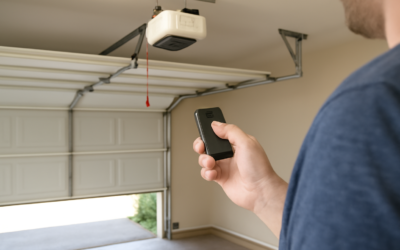
Whether you just installed a new unit or lost a remote, Chamberlain garage door opener programming almost always comes down to one component: the learn button. Find that button on the back of the motor head, understand what its indicator light is telling you, and you can pair remotes, wireless keypads, and even your car’s built-in buttons in under a minute each. The process is nearly identical across Chamberlain and its sister brand LiftMaster.
Part of our Garage Doors guide — explore the full guide →
This guide covers every device you might need to program, plus the travel-limit setup that trips up a lot of new installs.
- Find the Learn Button First
- Programming a Remote Control
- Programming a Wireless Keypad
- Programming Your Car’s Built-In Buttons
- Setting the Travel Limits
- Adding myQ Smart Control
- Programming a MyQ Internet Gateway
- Troubleshooting Programming Problems
- Programming After a Power Outage
- Programming a Second Opener or Home
- Erasing All Remotes
Find the Learn Button First
Everything starts at the motor head. Pull the light lens cover, or look on the back panel, and locate a colored square learn button next to a small LED. Chamberlain color-codes this button, and the color tells you the security frequency:
- Purple, red-orange, or green — Security+ 2.0, the current rolling-code system
- Yellow — Security+ 2.0 with an anti-hacking indicator
- Red, orange, or purple older units — the previous Security+ generation
Knowing the color matters when buying replacement remotes, because a compatible accessory must support your opener’s frequency. When in doubt, a universal Chamberlain remote covers most generations.
Programming a Remote Control
Pairing a handheld remote is the most common task and takes seconds:
- Press and release the learn button on the motor head. The LED lights up and stays on for about 30 seconds.
- Within that window, press the button on your remote that you want to use.
- The opener light will blink or you will hear a click, confirming the pairing.
- Release the remote button and test it.
If nothing happens, you likely ran past the 30-second window. Just press the learn button again and repeat. Fresh batteries in the remote matter too; a weak coin cell can prevent a clean pairing.
Programming a Wireless Keypad
The exterior keypad lets you open the door with a PIN, handy for kids and deliveries. The steps differ slightly by keypad model, but the core method holds:
- Choose a four-digit PIN you will remember.
- Press the learn button on the motor head to enter learn mode.
- Within 30 seconds, enter your PIN on the keypad and press the enter or up-down button.
- The opener light flashes to confirm.
Test the code immediately. If you need to change it later, most Chamberlain keypads let you reset by holding specific keys, or you can simply reprogram a new code through the learn button.
Programming Your Car’s Built-In Buttons
Many vehicles include HomeLink or Car2U buttons in the visor or mirror. Newer Chamberlain openers with Security+ 2.0 sometimes need an extra step because of the rolling-code handshake.
First, train the car button to the opener following your vehicle’s HomeLink instructions, usually holding the visor button while holding the remote up to it. Then, and this is the step people miss, press the learn button on the motor head once and, within 30 seconds, press the trained HomeLink button twice or three times until the door responds. That final sync tells the opener to trust the car.
Setting the Travel Limits
On a fresh install, the door may not fully open or close, or it may reverse partway. That is the travel and force settings, not a programming fault. Chamberlain openers have adjustment buttons, often labeled up and down, on the motor head.
- Press and hold the up arrow to run the door to the fully open position, adjusting until it stops correctly.
- Press and hold the down arrow to set the fully closed position, leaving no gap at the floor.
- Run a full cycle and confirm the door opens and closes completely.
- Test the safety reverse by laying a 2-by-4 flat under the door; it must reverse on contact.
Proper limits protect both the door and the auto-reverse safety system, so never skip this after installation or a spring change.
Adding myQ Smart Control
If your opener has built-in Wi-Fi, the myQ app lets you operate and monitor the door from your phone. Download the myQ app, create an account, and follow the prompts to connect the opener to your home network. You will press the learn button or a dedicated Wi-Fi button as the app instructs.
Once linked, you can get alerts if the door is left open, close it remotely, and grant access to family members. It is one of the more genuinely useful smart-home upgrades.
Programming a MyQ Internet Gateway
Older Chamberlain openers without built-in Wi-Fi can still get smart features through a separate myQ Internet Gateway or a Smart Garage Hub. This small device bridges your opener to your home network so the app can control it, and pairing it uses the same learn-button logic you already know.
- Plug the gateway into your router with the supplied cable, or mount the Smart Garage Hub on the ceiling near the opener.
- Open the myQ app, create an account, and add a new device, following the prompts.
- When instructed, press the learn button on the motor head so the hub can pair with the opener.
- Confirm the door responds through the app and set up any open-left alerts you want.
This is the cheapest way to add phone control to an opener that shipped before Wi-Fi became standard, and the hardware runs about $30 to $50.
Troubleshooting Programming Problems
When a device refuses to pair, the cause is almost always one of a handful of simple issues. Run through these before assuming the opener is faulty:
- Dead battery — a weak coin cell in the remote prevents a clean signal; swap it and retry
- Missed the window — you have only about 30 seconds after pressing learn, so move quickly
- Full memory — older openers hold a limited number of devices; erase all and reprogram if it is full
- Frequency mismatch — a remote that does not match your learn-button color will never pair
- Wrong button pressed — make sure you are pressing the learn button, not the up-down travel buttons nearby
If a specific remote still fails after fresh batteries and a clean pairing attempt, the remote itself may be defective. Test with a second known-good remote to isolate the problem before buying a replacement.
Programming After a Power Outage
A common worry is that a power outage will wipe your programming. Good news: it will not. Chamberlain openers store paired remotes, keypads, and codes in nonvolatile memory, so your devices keep working when power returns.
What an outage can affect is the travel limits on some units after the manual release cord has been pulled and reset. If the door stops short or reverses after power is restored, simply reset the up and down travel limits using the motor-head buttons. Your remotes and keypad will still be programmed and ready.
Programming a Second Opener or Home
Households with two garage bays or a second property often want a single remote to control multiple doors. Chamberlain remotes with two or three buttons make this easy, since each button pairs independently to a different opener.
To set it up, take the remote to the first opener, press that unit’s learn button, and program button one. Then walk to the second opener, press its learn button, and program button two on the same remote. Now one handheld controls both doors, each on its own button. The process works identically whether the openers are in the same garage or at two different addresses.
- Use a separate button for each door so you never open the wrong one
- Label the buttons with a small piece of tape if the doors look alike from the car
- Keep spare remotes programmed and stored, since reprogramming a lost one is simple
The same logic applies to keypads and car buttons. Each can be trained to whichever opener you choose, and a single myQ account can manage multiple connected openers from one app. This flexibility is why the learn-button system, though it looks basic, handles even complex multi-door households without any special equipment.
Erasing All Remotes
If you buy a used home or lose a remote you cannot recover, wipe the opener’s memory. Press and hold the learn button for about six seconds until the LED goes out. That erases every paired remote, keypad, and car button. Then reprogram the devices you still have. Mastering this reset, along with the pairing steps above, means Chamberlain garage door opener programming will never leave you stranded in the driveway again.