
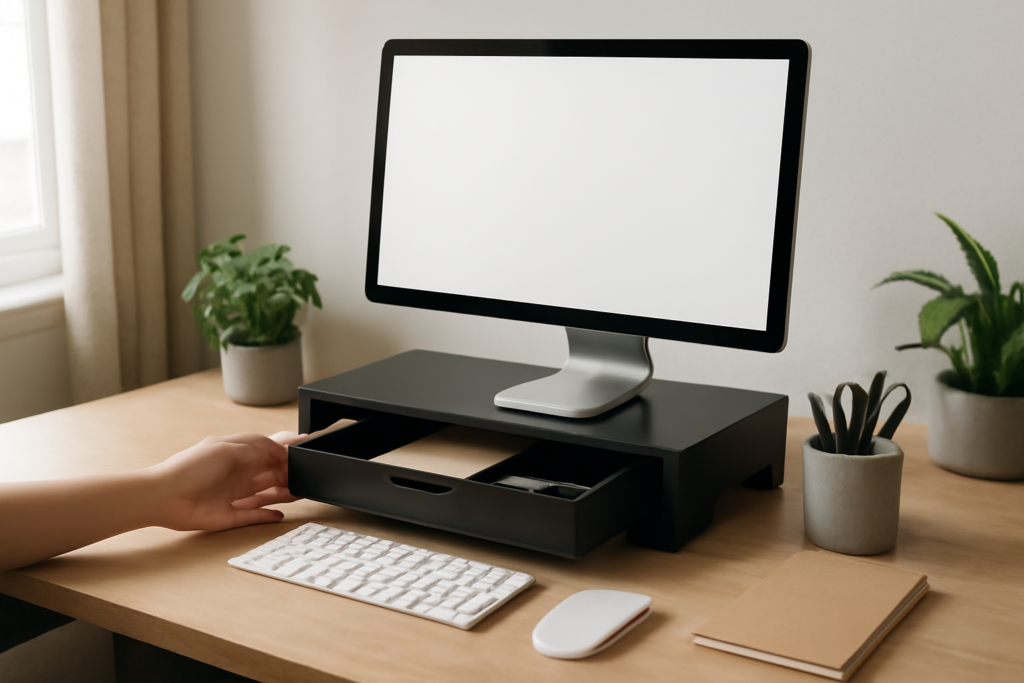
A cluttered desk usually has less to do with how much you own and more to do with where it lives. A monitor stand with drawer lifts your screen to a better viewing height and turns the dead space underneath into storage for pens, cables, notebooks and chargers. It is one of the cheapest ergonomic upgrades you can make, and it frees up surface area on even a small desk.
The right riser depends on four things: how wide your monitor base is, how much lift you need to bring the top of the screen to eye level, how much you want to store and whether wood or metal suits your space. Get the height right first. Storage is the bonus, not the reason to accept a screen that sits too low or too high.
- Why Choose a Monitor Stand with Drawer
- Measure Before You Buy
- Height, Width and Weight Capacity
- Wood vs Metal Monitor Risers
- Drawer and Shelf Storage Options
- Pairing a Riser with a Monitor Arm
- Setup and Ergonomics
- Troubleshooting Common Problems
- Cost Ranges and When to Upgrade
- Frequently Asked Questions
We walk through measuring, choosing materials and styles, pairing a riser with a monitor arm and fixing the most common setup problems.
Why Choose a Monitor Stand with Drawer
Most monitors ship with a stand that places the top of the screen a few inches below eye level for an average seated adult. That small gap encourages you to tilt your head forward all day. A monitor stand with drawer raises the display 3 to 6 inches, which is often enough to bring the top line of the screen level with or slightly below your eyes.
The drawer adds closed storage without adding footprint. Open shelves collect clutter in plain sight, while a shallow drawer hides the small items that otherwise scatter across the desk. Some models add a slot for a phone or tablet, a pencil tray, or a shelf above the drawer for a keyboard to slide under when you are not typing.
If you share the desk or work in a small room, closed storage also keeps the surface ready for other uses at the end of the day. A tidy monitor stand with storage can make a kitchen corner or guest room desk feel like a proper workstation.
Measure Before You Buy
Three measurements tell you which riser will work.
- Monitor base footprint: measure the width and depth of your monitor stand base. The riser top needs to be larger on both dimensions, with a margin of an inch or more.
- Height gap: sit in your normal posture and measure from the desk to your eye level. Then measure from the desk to the top of the screen. The difference is roughly how much lift you need.
- Desk depth: most risers are 8 to 12 inches deep. Subtract that from your desk depth and make sure you still have room for a keyboard and wrists, ideally 24 inches or more total from the screen to your eyes.
For two monitors, you can use one long riser, often 36 to 42 inches wide, or two matching risers. A single long riser keeps screens at the same height and gives a larger drawer, while two separate units let you angle the screens independently. A corner monitor stand is a triangular or angled design that fits into an L-shaped desk corner, which is useful when the corner would otherwise go to waste.
Height, Width and Weight Capacity
Fixed height risers usually come in heights between 3 and 6 inches. Adjustable models use stacking legs, interchangeable feet or a telescoping frame to change height in steps. If you share the desk or might add a thicker chair cushion later, an adjustable design gives you room to fine-tune.
Weight capacity matters more than people expect. A typical 27 inch monitor weighs 10 to 15 pounds with its stand, but larger or curved screens and a laptop on top can reach 30 pounds or more. Look for a rated capacity at least 50 percent higher than your load. Solid wood and steel frames typically handle 40 to 60 pounds, while thin particleboard units may sag over time.
- Single 24 to 27 inch monitor: riser 18 to 24 inches wide
- Ultrawide or 32 inch monitor: riser 26 to 32 inches wide
- Two monitors: riser 36 to 42 inches wide, or two units
Wood vs Metal Monitor Risers
Material affects appearance, weight and durability. Here is how the common options compare.
Solid wood
A walnut monitor stand or one in oak, maple or bamboo feels substantial and ages well. Solid wood drawers slide smoothly if the joinery is tight, and minor scratches can be sanded and oiled. Wood desk shelves from small workshops often come in matching finishes with desk mats and trays, which makes it easy to build a consistent look. Expect a higher price and heavier weight.
Engineered wood and bamboo
Bamboo is hard, stable and affordable, and it resists moisture better than many softwoods. Engineered wood with a veneer gives a real wood face at lower cost, although deep gouges cannot be refinished.
Metal
Steel and aluminum risers are slim, strong and often include mesh drawers or side pockets. They work well in modern offices and handle heavy loads without bulk. Mesh drawers show their contents, which some people like and others do not.
Plastic and acrylic
These are light and inexpensive but can flex under heavier monitors and scratch easily. They are fine for a laptop or a small secondary screen.
Drawer and Shelf Storage Options
Not every drawer design is equally useful. Consider what you actually want to hide away.
- Full width shallow drawer: good for notebooks, stationery and flat items
- Divided drawer: small compartments for pens, sticky notes, USB drives and earbuds
- Twin side drawers: keep the center open so a keyboard can slide underneath
- Open shelf plus drawer: the shelf holds a hard drive, speaker or router while the drawer hides small items
- Built-in charging: some risers include USB ports or a pass-through for a charging pad; keep these plugged directly into a wall outlet or a quality surge protector rather than chaining adapters
Drawer runners matter. Wood-on-wood slides are quiet but can stick in humid rooms; metal ball bearing runners are smoother and handle more weight. Check for a stop so the drawer does not pull out entirely and dump its contents.
Pairing a Riser with a Monitor Arm
A monitor arm clamps to the desk edge or through a grommet hole and holds the screen in the air, which gives you full control over height, tilt and distance. So why add a riser? Many people use the arm for their main screen and place the riser underneath as a storage platform, a spot for a laptop or a shelf for speakers. Others use a desk with monitor shelf built in and add an arm for a second screen.
If you combine them, make sure the arm clamp does not collide with the riser and that the riser does not block the arm pole from sitting flush against the back edge. Measure the clamp position before you commit. For standing desks, a riser adds a little weight to the load, so stay within the frame rating.
A standing computer stand is a different product that holds a laptop or monitor at standing height on top of a regular desk. It solves a posture problem rather than a storage one, but some versions include a small drawer or tray.
Setup and Ergonomics
- Center the riser behind your keyboard, aligned with your body and chair.
- Place the monitor on top and check that the top of the screen is at or slightly below eye level.
- Tilt the screen back 10 to 20 degrees so you look slightly down at the middle of the display.
- Sit about an arm’s length from the screen, usually 20 to 30 inches.
- Route power and video cables through the back of the riser or along its legs, then down to a tray or cable sleeve.
- Load the drawer and check that it opens fully without hitting your keyboard or wrists.
Troubleshooting Common Problems
- Riser wobbles: check the desk for a warped surface, add thin felt pads under the feet and tighten any assembly screws.
- Monitor still too low: choose a taller or adjustable riser, or add a monitor arm for fine height control.
- Drawer sticks: rub paraffin wax on wood runners or check that the riser is not twisted on an uneven surface.
- Top sags in the middle: move heavy items toward the legs or upgrade to solid wood or steel with a higher capacity.
- Keyboard will not slide under: measure clearance and look for designs with at least 2 inches of open space under the center.
Cost Ranges and When to Upgrade
Basic plastic or particleboard risers with a drawer generally run modest prices, often under fifty dollars. Bamboo, metal mesh and mid-grade wood units usually land somewhere between that and around a hundred dollars. Solid hardwood designs with dovetail drawers or dual monitor widths can cost more, especially from small makers. If you are furnishing a new office, a desk with monitor shelf built in may cost less overall than buying separate pieces.
A monitor stand with drawer is a simple fix for a crowded desk and a stiff neck. Measure first, choose a capacity with headroom and pick the material that matches how much wear it will see.
Frequently Asked Questions
How high should a monitor stand be?
High enough that the top of the screen sits at or slightly below eye level when you sit upright. For many setups that means lifting the monitor 3 to 6 inches above its stock stand.
Will a monitor riser work with two monitors?
Yes. Use one long riser around 36 to 42 inches wide or two matching units. A single riser keeps both screens at the same height and offers a bigger drawer.
Is a wood or metal monitor stand better?
Both work well. Solid wood looks warmer and can be refinished, while steel and aluminum are slimmer and often carry more weight. Pick based on your desk style and load.
Can I use a monitor arm and a riser together?
Yes. Many people use an arm to position the main screen and a riser underneath for storage or a laptop. Check that the arm clamp and riser do not collide.
How much weight can a monitor stand with drawer hold?
Most solid wood and steel units are rated for 40 to 60 pounds, while lighter plastic and particleboard models may hold 20 to 30 pounds. Always check the rating and leave headroom.